
Wyse 3000 Series Thin Client Wyse 3040 Quick Start Guide
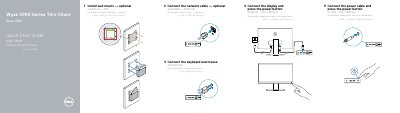
This quick start guide for the Dell Wyse 3000 Series thin client, computer model Wyse 3040, walks through the basic setup in five steps: installing the optional wall mount, connecting the network cable, connecting the keyboard and mouse, connecting the display, and connecting the power cable before pressing the power button. Each step is given in English, Traditional Chinese, Indonesian and Arabic.
The second page lists the features of the system, including the power adapter input, DisplayPort and USB ports, the 10/100/1000 Base-T network port, lock receptacle, power button with light, and universal headset jack. It also gives the regulatory model N10D / regulatory type N10D001, points to Dell support and contact pages, and includes the Taiwan RoHS substance table.
| Power adapter input | +5V/+12V |
|---|---|
| DisplayPort | 2 ports |
| USB 2.0 ports | 2 ports |
| Network port | 10/100/1000 Base-T |
| USB 3.0 port | 1 port |
| Headset jack | Universal headset jack |
| Lock | Lock receptacle |
| Regulatory type | N10D001 |
| Computer model | Wyse 3040 |
It has two DisplayPorts, two USB 2.0 ports, one USB 3.0 port, a 10/100/1000 Base-T network port and a universal headset jack, plus a lock receptacle.
Connect the display and press the power button; the power cable is connected and the power button pressed as the next step.
No, installing the wall mount is an optional step.
Dell points to Dell.com/support and Dell.com/support/manuals for product support and manuals.