
The Dell Precision 7920 Tower Workstation Quick Start Guide provides information on how to set up and use the Dell Precision 7920 Tower Workstation.
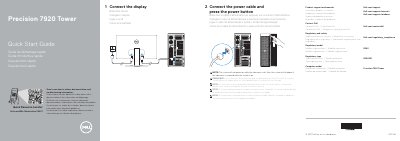
This two-page quick start guide from Dell shows how to set up the Precision 7920 Tower computer. It covers connecting the power cable and pressing the power button, and connecting the display to the system.
The guide also contains a note that the system will not power on while the side cover is off and will shut down if the cover is removed while the system is running. A labeled diagram identifies the front and back features of the computer, including USB 3.1 Gen 1 ports, USB 3.1 Gen 1 Type-C ports with and without PowerShare, expansion card slots, drive bays, audio, serial, PS/2 and network ports, and the side cover release latch. Links to support, manuals, contact and regulatory compliance pages are printed in the guide alongside a Quick Resource Locator code.
| USB ports | USB 3.1 Gen 1 ports, a USB 3.1 Gen 1 Type-C port, and a USB 3.1 Gen 1 Type-C port with PowerShare |
|---|---|
| Expansion slots | Expansion card slots and a discrete graphics card slot (optional) |
| Drive bays | 5.25 inch bay (optional), optical drive, drive carriers |
| Other ports | Headset port, line-out port, microphone/line-in port, serial port, PS/2 mouse and keyboard ports, and two network ports |
| Computer model | Precision 7920 Tower |
| Regulatory model and type | D04X / D04X001 |
Connect the power cable and press the power button. Then connect the display.
The system will not power on while the side cover is off, and it shuts down if the cover is removed while the system is on.
Scan the Quick Resource Locator code or go to Dell.com/QRL/Workstation/7920T.
Dell lists support and manuals at Dell.com/support and Dell.com/support/manuals.