
This manual describes how to install and configure the Hunter HC Expansion Module
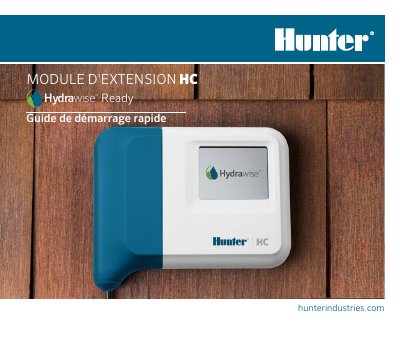
The Hunter HC Expansion Module is a 12-zone module with a blue cover, supplied with a 900 mm (36 in.) extension cable, two screws and two wall plugs. It is designed for sheltered installation within 500 mm (20 in.) of the main controller and has two cable entries: rear or bottom conduit.
Power is supplied by the main controller through the supplied cable, and only the 12-zone controller supports expansion modules. Set the module ID to 1 or 2 on its touchscreen, add the same ID in the Hydrawise app, and then add the new watering zones. Two modules can be connected in series for up to 36 zones. This manual is written in French.
| Zones | 12 |
|---|---|
| Maximum zones with two modules | 36 zones |
| Included extension cable length | 900 mm (36 in.) |
| Maximum distance from main controller | 500 mm (20 in.) |
| Cable entries | 2 (rear or bottom conduit) |
| Module ID | 1 or 2 |
| Supported main controller | 12-zone controller only |
| Installation location | Sheltered location |
It adds 12 zones.
Only the 12-zone controller supports expansion modules.
Two modules can be connected in series for up to 36 zones.
Check that the module ID set on the module matches the ID configured in the Hydrawise app.