
This document is a quick user guide for barcode printers, which explains the steps of opening the printer packaging, installing ribbon and label paper, connecting the power cord and computer, and installing printer drivers and barcode editing software. It also provides answers to common questions, including printing stops, paper detection, ribbon installation, paper skipping, poor print quality, and blank printing.
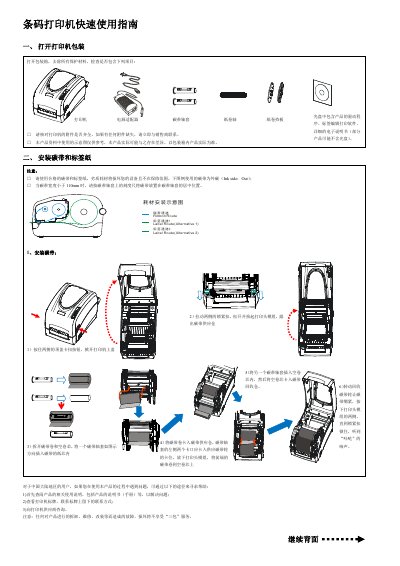
This document serves as a quick user guide for Zebra barcode printers, providing step-by-step instructions for initial setup. It details how to unbox the device, install the ribbon and label media, and connect the printer to a computer via USB. The guide also explains how to install the specific Zebra drivers (ZMDrvSetup.exe) and the LabelSoft editing software. This manual is written in Chinese.
| Power Adapter Output | 24V, 2.0A or 2.5A |
|---|---|
| Driver Tool Name | ZMDrvSetup.exe |
| Editing Software Name | LabelSoft |
Perform a paper calibration by turning off and restarting the printer, then holding the 'Feed' button for about 5 seconds until the printer starts feeding paper.
The ribbon may not be installed correctly, or if using thermal paper, the print mode must be set to 'Thermal' in the driver preferences.