
This document provides instructions on the installation and use of Philips hotel TV, including how to install programs and activate hotel mode. The TV offers various features such as welcome message, remote control features, user menu blocking, switch-on volume and program selection, volume limitation, etc.
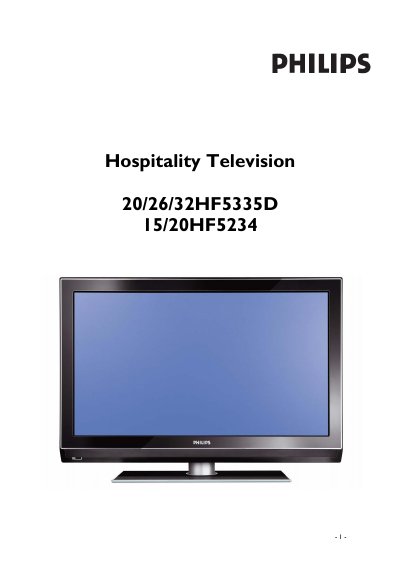
This guide explains how to install and configure Philips Hospitality Television models HF5335D and HF5234 for hotel use. It includes steps for digital and analogue channel installation, activating hotel mode, and configuring volume, welcome messages, and security settings.
The document also details the use of the Philips SmartLoader for cloning TV settings, both in wireless and wired modes, and provides troubleshooting tips for common errors such as I2C errors or version mismatches.
| Maximum volume limit | cannot exceed selected level |
|---|---|
| Welcome message length | 2 lines, 20 alphanumeric characters each |
| SmartLoader wireless distance | 5‑30 cm |
| SmartLoader battery type | 3 × R6/AA batteries |
Turn on the TV, select an analogue channel, then press the remote keys 3‑1‑9‑7‑5‑3‑MUTE to open the BDS Hotel Mode Setup menu and configure the desired settings.
Each line of the welcome message can contain up to 20 alphanumeric characters, and the message can have two lines.
Check the RJ11 cable connection and retry; a bad connection can cause the error.