
This document introduces how to install and configure RAID hard drives on the ASUS P5Q-E motherboard
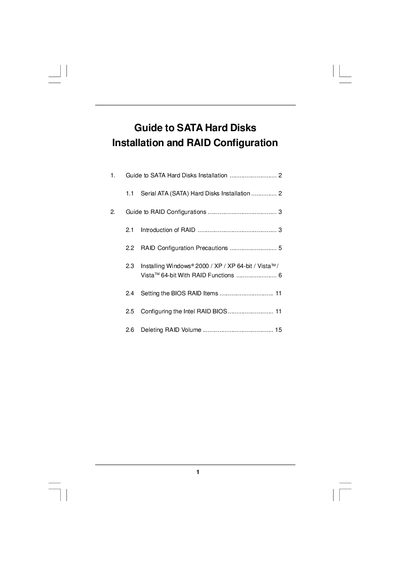
The document provides step‑by‑step instructions for installing Serial ATA (SATA) hard drives and setting up various RAID configurations on motherboards that use Intel southbridge chipsets. It describes the supported RAID levels, precautions, and the required BIOS and driver settings.
Key procedures include configuring the BIOS to enable RAID, creating driver diskettes, installing Windows with the appropriate RAID driver, and using Intel Matrix Storage Manager to create, migrate, or delete RAID volumes. The guide also outlines the minimum number of drives needed for each RAID level and warns about data‑loss risks for RAID 0.
| Supported RAID levels | RAID 0, RAID 1, RAID 10, RAID 5 |
|---|---|
| Minimum drives for RAID 10 | 4 hard disk drives |
| Minimum drives for RAID 5 | 3 identical hard disk drives |
Enter the BIOS Setup Utility, go to the Advanced screen, set “ATA/IDE Configuration” to Enhanced, and set “Configure SATA as” to RAID.
A RAID 10 configuration requires at least four hard disk drives.
RAID 0 improves performance but provides no fault tolerance; hot‑plugging any HDD in a RAID 0 array can cause data loss.
Yes, by attaching an additional SATA drive of equal or greater capacity and using the Intel Storage Utility to create a RAID 5 volume.