
This Cisco Webex Meetings user manual provides step‑by‑step instructions for installing, joining, and using meetings, including video, screen sharing…
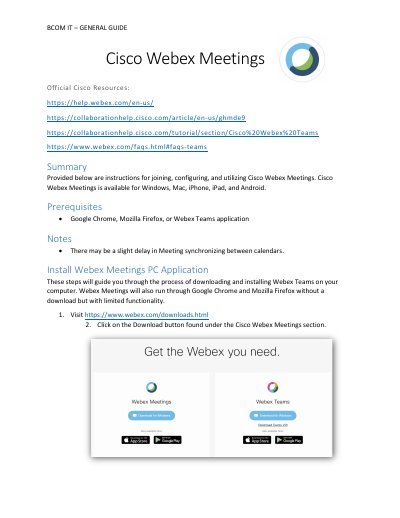
The guide explains how to download and install the Cisco Webex Meetings application on Windows, Mac, iPhone, iPad, or Android devices, and how to launch the program from the desktop or start menu. It also covers prerequisites such as using Google Chrome, Mozilla Firefox, or the Webex Teams application.
Detailed usage instructions cover video meeting controls, creating and managing polls, instant meeting start, screen sharing, and recording meetings. The manual describes the available toolbar options, audio/video settings, and how to share notes or annotate during a session.
| Supported Platforms | Windows, Mac, iPhone, iPad, Android |
|---|---|
| Prerequisite Browsers | Google Chrome, Mozilla Firefox, Webex Teams application |
Visit the download page, click the Download button under Cisco Webex Meetings, then double‑click the webexapp.msi file and follow the setup wizard.
During a video meeting, click the Recording icon and choose where to save the recording; a recording symbol will appear for all participants.
Select the Polls option, choose a question type, click “New”, enter the question, add answer options, and then start the poll.
Yes, click the “Start Meeting” button on the main screen to begin an instant video meeting.