
The Canon IJ Scan Utility and ScanGear user manual explains software features, scanning settings, troubleshooting and installation steps.
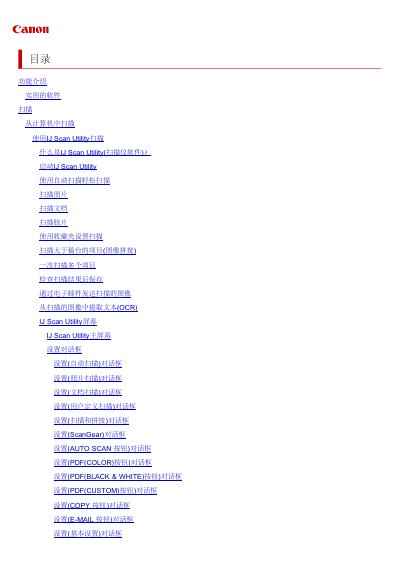
This manual provides a complete guide to Canon's scanner software, covering the IJ Scan Utility and ScanGear drivers. It details each function, from automatic scanning and OCR to image editing, PDF creation, and integration with online storage.
The document also includes troubleshooting tips for common errors, installation procedures for both Windows and macOS, and a full specification sheet of the supported scanners. Users can follow step‑by‑step instructions to configure settings, resolve issues, and keep the software up to date. This manual is written in Chinese.
| Scanner type | Flatbed |
|---|---|
| Sensor type | CCD (12‑line color) |
| Light source | White LED |
| Optical resolution (transparent) | 9600 × 9600 dpi |
| Interface | Hi‑Speed USB |
| Maximum document size | A4/Letter (216 × 297 mm) |
| Power consumption (running) | Maximum 12 W |
| Weight | Approximately 4.6 kg |
Download the latest ScanGear from Canon’s website, run the installer, follow the on‑screen prompts, and accept the license agreement. The manual lists detailed steps for both Windows and macOS.
Yes. Close all applications, disconnect the USB cable, delete the ScanGear files (e.g., “CanoScan XXX.ds”), empty the trash, and restart the computer.