
D-Link DIR-632 Wireless N 8-Port Broadband Router Chinese Quick Installation/Configuration Guide, introduces the hardware connection method of D-Link DIR-632, network connection settings, wireless network security settings, wireless network card and wireless connection settings, and SharePort software usage
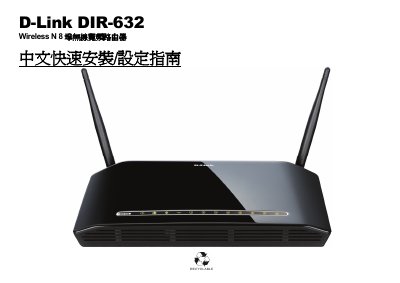
This guide walks you through the hardware setup of the DIR‑632 router, including power connection, WAN and LAN cabling, and USB port usage. It also explains the meaning of the front‑panel LEDs and the WPS button for quick wireless pairing.
After the physical installation, the manual details the initial software configuration steps: accessing the web interface at 192.168.0.1, setting up Internet connection types, configuring wireless security, and using the SharePort software. Appendices cover factory reset, firmware updates, and Ethernet RJ‑45 wiring standards. This manual is written in Chinese.
| Power Input Voltage | AC 100~240V 0.4A |
|---|---|
| Power Output Voltage | DC 5V 2.5A |
| Number of LAN Ports | 8 |
| Number of USB Ports | 1 (USB 2.0) |
Press and hold the Reset button for 10 seconds while the device is powered on; the router will restore factory settings.
Enter http://192.168.0.1 in a web browser to open the router’s configuration page.
Pressing the WPS button initiates a quick wireless connection setup if your wireless adapter also supports WPS.