
Quick start guide for Dell XPS 15 laptop.
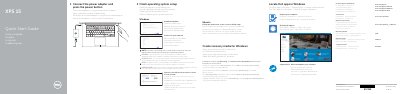
This Dell quick start guide for the XPS 15 (XPS 9550) laptop shows how to connect the power adapter and press the power button. It then covers finishing operating-system setup for Windows or Ubuntu, connecting to a network, signing in to a Microsoft account or creating a local account, locating Dell apps in Windows, and creating recovery media for Windows.
The guide also lists laptop features such as the camera, power-adapter port, USB 3.0 ports with PowerShare, HDMI port, Thunderbolt 3 port with power delivery (USB-C), headset port, SD-card slot, battery-status controls, security-cable slot, power button, service tag label, and regulatory label. It includes shortcut keys and Dell support, contact, and regulatory web addresses.
| Regulatory model | P56F |
|---|---|
| Regulatory type | P56F001 |
| USB port | USB 3.0 port with PowerShare |
| Video port | Thunderbolt 3 port with Power delivery (USB-C) |
| Card slot | SD-card slot |
| Security slot | Security-cable slot |
| Battery control | Battery-charge status button |
Connect the power adapter and press the power button.
In Windows search, type Recovery, click Create a recovery media, and follow the instructions on the screen.
Dell lists product support and manuals at Dell.com/support and Dell.com/support/manuals.
Enter the password for the wireless network access when prompted.