
Dell Display Manager is an application for Windows used to manage one or more monitors.
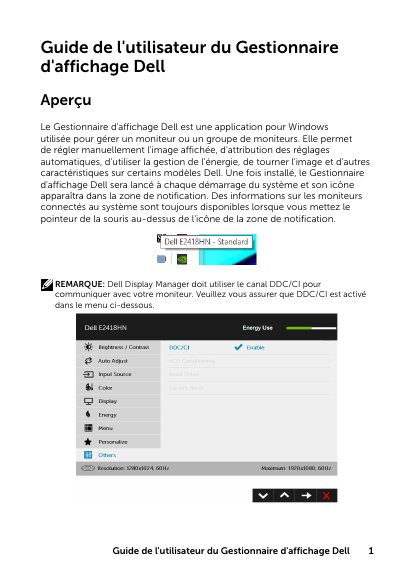
Dell Display Manager is a Windows application used to manage one monitor or a group of monitors. It allows manual adjustment of the displayed image, automatic setting assignment, power management and image rotation on certain Dell models. Once installed, it starts each time the system boots and its icon appears in the notification area; monitor information is shown when the mouse pointer is held over that icon. Dell Display Manager must use the DDC/CI channel to communicate with the monitor, and DDC/CI has to be enabled in the monitor menu.
The guide explains the Quick Settings dialog opened from the notification-area icon, where brightness, contrast, preset modes (manual or Auto Mode) and screen resolution can be changed and the advanced interface reached. It then covers the Basic tab, assigning preset modes to applications with Auto Mode, the Input Manager tab for switching between multiple video inputs, PowerNap energy-saving options on supported Dell models, and troubleshooting steps including DDC/CI checks, graphics driver updates and removal of docks, extenders or converters. This manual is written in French.
| Software platform | Windows |
|---|---|
| Monitor communication interface | DDC/CI (must be enabled in the monitor OSD) |
| Startup behavior | Launched at each system startup, icon in the notification area |
| Supported monitors | Dell-branded monitors only |
| Not supported | Dell monitor models before 2013, Dell D series, Nvidia G-Sync gaming monitors, virtual and wireless displays |
| Power saving | PowerNap options in the Options tab on supported Dell models |
It works only with Dell-branded monitors. Dell monitor models from before 2013, the Dell D series, Nvidia G-Sync gaming monitors and virtual or wireless displays are listed as not working with it.
Click the Dell Display Manager icon in the notification area. When several supported Dell monitors are connected, the menu lets you select a specific target monitor.
Make sure the video cable is correctly connected, check the monitor OSD to confirm DDC/CI is enabled, install the latest display driver from your graphics card maker, remove docks, extenders or converters, and restart the system.
Yes. The Auto Mode tab lets you associate a preset mode with an application so it is applied automatically; you add an application by dragging it onto the list. Assignments for batch files, scripts, loading programs and non-executable files such as zip archives are not supported.