
The Dell XPS 27 Quick Start Guide provides instructions on how to set up the keyboard and mouse, connect the power cable, turn on the power, finish Windows setup, connect to your network, and enable Dell updates.
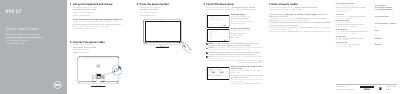
This is the printed quick start guide for the Dell XPS 27 computer (computer model XPS 2720, regulatory model W06C). It walks through the first-time setup in short illustrated steps: setting up the keyboard and mouse, connecting the power cable and pressing the power button, finishing Windows setup, enabling Dell updates, connecting to a network, and signing in to a Microsoft account or creating a local account. It also explains how to create recovery media from Windows search.
The second half lists the computer's features by number, from the microphones, camera and camera-cover latch to the optical drive, power button, brightness controls, media-card reader, USB 3.0, HDMI and Thunderbolt ports, network port, Service Tag label and wireless keyboard/mouse receiver. It finishes with pointers to Dell apps such as SupportAssist and Dell Help & Support, computer registration, product support and manuals on Dell.com, contact information and regulatory compliance links.
| USB 3.0 ports | 2 |
|---|---|
| USB 3.0 ports | 4 |
| Microphones | 2 |
| Thunderbolt port | Optional |
| Optical drive | Included |
| Regulatory model | W06C |
In Windows search, type Recovery, click Create a recovery media, and follow the instructions on the screen.
Touch and hold the input source selection/display off control; touch it again to turn the screen back on.
Enter the password for the wireless network access when prompted.
Dell lists product support and manuals at Dell.com/support, Dell.com/support/manuals and Dell.com/support/windows.