
This PDF document is a user manual for the WD R-R-TMZ-KWG10ZNV1T00 solid-state drive. It includes instructions on how to use the product, how to install it, and safety instructions.
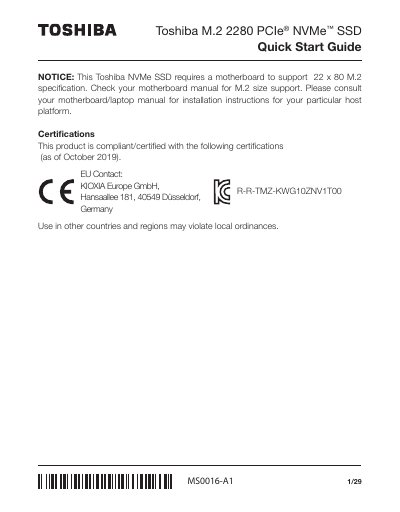
This quick start guide from Toshiba (document number MS0016-A1) explains how to install a Toshiba NVMe SSD in a motherboard. It begins with a notice that the drive requires a motherboard supporting the 22 x 80 M.2 specification and directs the reader to the motherboard or laptop manual for the installation instructions of a particular host platform. Certification information current as of October 2019 is also listed.
The installation section uses three illustrations: the bare M.2 slot with screw holes for 2242, 2260 and 2280 modules, inserting the SSD into the M.2 slot, and screwing the SSD to the motherboard standoff. The guide notes that Windows 10 natively supports PCIe NVMe SSDs and points to a Toshiba download page for safety instructions, the latest drivers and SSD Utility Storage Management Software. The same content is repeated in French, German and Korean.
| Form factor / motherboard requirement | M.2 22 x 80 specification |
|---|---|
| Host interface | PCIe NVMe SSD slot |
| M.2 module lengths supported by the slot | 2242, 2260, 2280 |
| Operating system support | Microsoft Windows 10 natively supports PCIe NVMe SSDs |
| Certifications status | Compliant/certified as of October 2019 |
It requires a motherboard that supports the 22 x 80 M.2 specification; check your motherboard manual for M.2 size support.
Yes, Microsoft Windows 10 natively supports PCIe NVMe SSDs.
Insert the SSD into the motherboard's PCIe NVMe SSD slot and screw it to the motherboard standoff, making sure it is secured.
The guide points to https://ssd.toshiba-memory.com/en-emea/download/ for safety instructions, the latest drivers and SSD Utility Storage Management Software.