
This document introduces how to use the Cisco Jabber software, including software startup, user login, contact management, and call management.
This guide explains how to use Cisco Jabber on Mac for managing calls, contacts, and voicemail. It covers logging in, setting availability, making and managing calls, adding contacts, and configuring preferences. The software can be used with a desk phone or softphone via computer audio.
Key features include call forwarding, conferencing (up to 4 calls), voicemail access, and switching between devices. The guide also explains how to dock the app for a compact view and how to close the application properly.
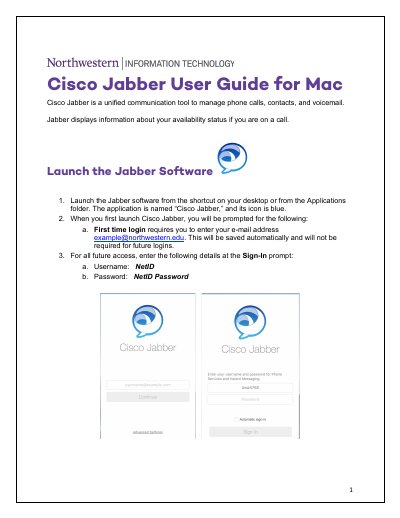
Enter your e-mail address (e.g., [email protected]) when prompted; it will be saved for future logins.
Dial your 10-digit number or 847-467-7777, click Call, press *, enter your extension, press #, then enter your PIN and press #.
Use the PHONE CONTROL option in the left sidebar to toggle between devices.
Click Jabber > Quit Jabber to close the app. Clicking the red button only enables Docked mode and leaves Jabber running.