
This manual describes how to install and configure the PaperCut Brother Embedded Solution on Brother devices.
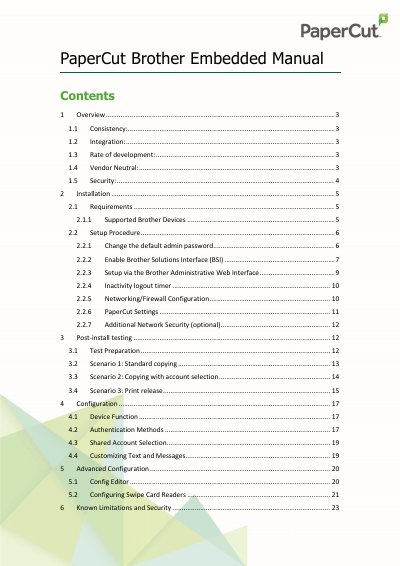
This manual explains how to install and configure PaperCut’s embedded solution on compatible Brother multifunction devices. It covers setup procedures, authentication methods, and device-specific configurations. The solution enables secure access, user authentication, job tracking, and shared account management via web interfaces and card readers.
The manual includes sections on supported Brother models, firmware requirements, enabling the Brother Solutions Interface (BSI), network setup, and troubleshooting common issues like scan-to-PC tracking limitations and card reader compatibility.
| Supported Brother Devices | MFC-9970CDW, DCP-9270CDN, DCP-9070CDW, DCP-8250DN, MFC-8950DW, MFC-8952DW, MFC-9140CDN, MFC-9330CDW, DCP-8110DN, MFC-8510DN, MFC-8520DN, DCP-8150DN, MFC-8710DW, DCP-8155DN, MFC-8910DW, MFC-8810DW, DCP-8112DN, DCP-8152DN, DCP-8157DN, MFC-8512DN, MFC-8712DW, MFC-8912DW |
|---|---|
| Authentication Card Readers | RFIdeas models: RDR-6081AKU, RDR-6281AKU, RDR-6381AKU, RDR-6E81AKU, RDR-6H81AKU, RDR-7081AKU, RDR-7581AKU, RDR-7L81AKU, RDR-7F81AKU |
The default admin password is 'access'.
Install BRAdmin Professional, select the device, go to Control -> Brother Solutions Interface -> Enable, accept the license agreement, and input the MFC admin password.
The officially supported card readers are RFIdeas models: RDR-6081AKU, RDR-6281AKU, RDR-6381AKU, RDR-6E81AKU, RDR-6H81AKU, RDR-7081AKU, RDR-7581AKU, RDR-7L81AKU, RDR-7F81AKU.