
The Extech BR200 and BR250 Video Borescopes are remote inspection devices that can be used to peer into tight spots and provide real-time video and image recording. Typical applications include HVAC inspection, automotive inspection, cable routing, and automotive/boat/aircraft inspection. The product features a high-resolution 3.5-inch TFT-LCD palm LCD monitor, water-resistant design (when fully assembled), wireless and hard-wired functionality, and the ability to record video and images.
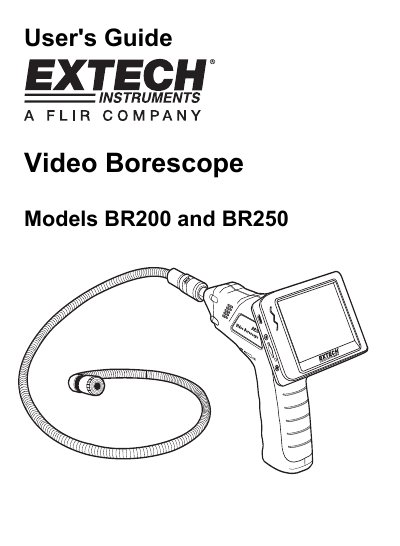
The Extech BR200 and BR250 Video Borescope are remote inspection devices designed to peer into tight spots and supply real-time video and images. Typical applications include HVAC, automotive, cable routing, and aircraft inspections. The system features a 3.5-inch TFT-LCD palm monitor with wireless and hard-wired functionality.
| Imaging Sensor Type | CMOS |
|---|---|
| Total Pixels (BR200) | 712 x 486 |
| Total Pixels (BR250) | 640 x 480 |
| Horizontal View Angle (BR200) | 50 degrees |
| Horizontal View Angle (BR250) | 45 degrees |
| Focus Point (BR200) | 20cm (8") |
| Focus Point (BR250) | 10cm (4") |
| Minimum Illumination | 0 Lux |
| Waterproof Capacity | IP67 (imager head only) |
| LCD Screen Type | 3.5" TFT-LCD |
The BR200 has a 17mm (0.67") diameter camera head, while the BR250 has a 9mm (0.36") diameter camera head.
Un-dock the module, connect the AC adapter, locate the Reset port on the reverse side, and momentarily press the Power Reset button for at least 2 seconds.
Check that the Video System Settings are set to "NTSC", not to 'PAL'.