
This document provides information on how to use the PM5DV2/DSP5D Editor software and important notices. It includes copyright information of the software and the prohibition of copying and reproducing commercially available music sequence data. It also mentions that the screen displays in the manual may differ from the actual screens, and any future upgrades and changes will be announced separately.
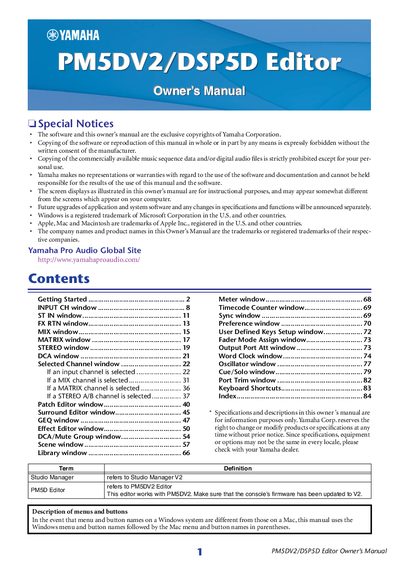
The Yamaha PM5DV2 and DSP5D Editors are software applications used within Studio Manager to remotely control the parameters of the PM5D or DSP5D mixing consoles. Users can start these editors from the Studio Manager window by double-clicking the corresponding icon after performing initial setup steps.
To configure the editors, users must access the System Setup and Mixer Setup windows via the File menu. In System Setup, settings include Input/Output ports for communication, Console Device ID selection, synchronization options like Fast Sync, and preferences for level meter data and workspace color. The Mixer Setup window allows configuration of fader pairing modes (Horizontal or Vertical), pan nominal positions, bus setups (VARI/FIXED), surround bus allocation, stereo bus settings, IP address configurations for the DSP5D, and cascade connection parameters.
| Number of internal effects and GEQ modules | up to eight internal effects and twelve GEQ modules |
|---|---|
| Default IP Address for DSP5D Editor | 192.168.0.129 |
| Default Subnet Mask for DSP5D Editor | 255.255.255.0 |
| Default Gateway for DSP5D Editor | 192.168.0.1 |
Start up Studio Manager and make settings, then double-click the corresponding icon in the Studio Manager window to open the editor.
Fast Sync shortens the synchronization time with the console itself; if synchronization fails, this check box should be cleared.
Yes, you can decrease the number of assigned internal effects to increase the number of available GEQ modules, using up to eight GEQ modules as effects.