
This document introduces the steps and equipment required to set up multiple displays using the ViewSonic ThinEdge™ LCD VP Series. This series of products is suitable for various fields such as financial traders/analysts, corporate managers/IT personnel, traffic control/monitoring personnel, power gamers, graphic designers/content creators, engineers/architects/CAD/CAM. The product features include ultra-slim bezel design, high-definition screen performance, digital/analog connectivity, adjustable pivot/height/tilt/swivel functions, and multi-panel mounting configurability.
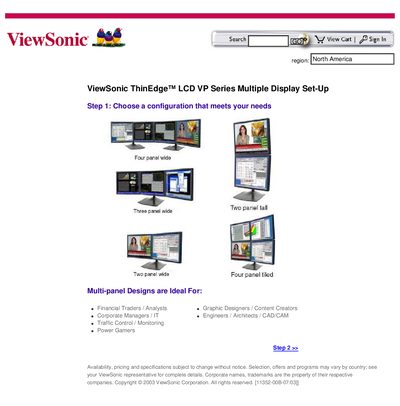
This guide walks you through selecting a multi‑panel configuration, gathering the required hardware, installing video cards and monitors, and configuring Windows to treat the displays as a single workspace. It also lists available display‑stand options and part numbers.
Follow the four steps: choose a layout, collect equipment (Windows 98+ OS, compatible video cards, and optional stands), install the hardware, and set up the monitor arrangement in Windows settings.
| Display size range | 17" – 21" |
|---|---|
| Bezel design | Ultra‑slim |
| Connectivity | Digital/analog |
| Adjustability | Pivot/height/tilt/swivel |
| Head‑only model option | LCD panel module without base |
A Windows 98 or newer operating system is required.
Options include a dual side‑by‑side stand (DS‑ERG‑33‑092), a dual vertical stand (DS‑ERG‑33‑091), a triple side‑by‑side stand (DS‑ERG‑33‑095), and a quad tiled stand (DS‑ERG‑33‑096).
Open Control Panel → Display, click the Identify button to see which monitor matches each icon, then select the desired primary monitor.