
This file contains the instructions for using ArcSoft VideoImpression software, including software functions, installation tutorials, and usage methods.
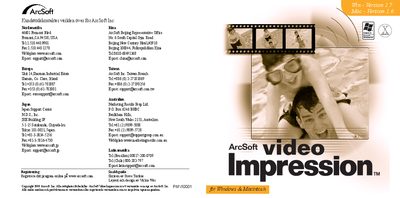
This guide introduces ArcSoft VideoImpression, a consumer‑level video editing program for Windows and Macintosh. It explains system requirements, how to install the software, and the main workflow for creating video projects using albums, storyboards, and editing tools.
The document also covers common tasks such as adding text, adjusting brightness and contrast, inserting transitions, printing still frames, and saving or exporting finished movies. Short step‑by‑step instructions are provided for both Windows and Mac environments. This manual is written in Swedish.
| Minimum CPU | Pentium‑based PC or equivalent |
|---|---|
| Hard‑disk space | 75 MB free |
| RAM | 64 MB |
| Color depth | 16‑bit or higher |
| Screen resolution | 800 × 600 |
You need a Pentium‑based PC or equivalent, at least 64 MB RAM, 75 MB free hard‑disk space, a 16‑bit (or higher) color screen, and a resolution of 800 × 600.
Insert the CD, open Start → Run, type D:\Setup.exe (where D is your CD drive), and follow the on‑screen instructions.
Select the image, click the Text button, then choose font, style, size and color to place the text on the picture.
Choose Save from the view menu, select the destination folder, name the file, pick the desired format, and click OK.