
This document is the user guide of Philips phone. It mainly introduces the functions of turning on, turning off, unlocking, locking screen, sliding standby screen, quickly switching main screen, accessing the application menu on the standby screen, pulling down the menu on the standby screen to open the task manager and the notification list, adding application icons to the standby screen, deleting application icons from the standby screen, adding built-in tool icons to the standby screen and deleting built-in tool icons from the standby screen.
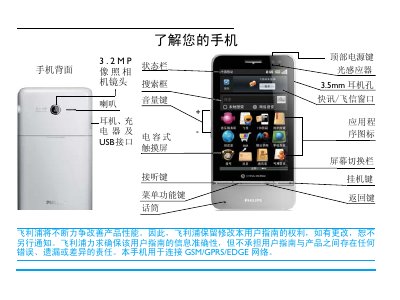
This manual provides step‑by‑step instructions for using the Philips V900 mobile phone, covering basic operations such as powering on, unlocking the screen, and making calls. It also describes how to navigate the three standby screens, add or remove application icons, and adjust settings like auto‑brightness.
Additional sections cover safety and compliance information, warranty and service details, and environmental specifications. The document is intended for end users who need guidance on everyday phone functions and maintenance. This manual is written in Chinese.
| Network Compatibility | GSM/GPRS/EDGE |
|---|---|
| Screen Type | Capacitive touch screen |
| Camera Resolution | 3.2 MP |
| SAR (Specific Absorption Rate) | 0.343 W/kg |
Press and hold the top power key until the device starts.
Press the top power key to light the screen, then drag the unlock icon to the indicated corner.
Long‑press an empty area on the standby screen, select the desired application from the list, and confirm.
Open Settings → Basic Settings → Display → Auto Brightness and turn it on.