
Key facts
Start here
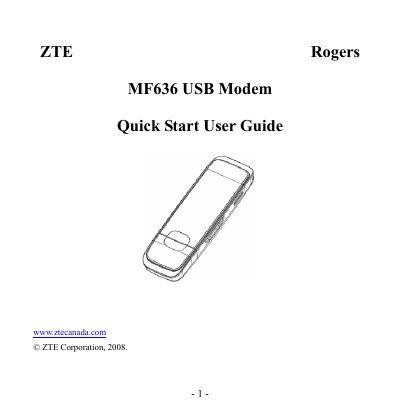
ZTE MF636 USB Modem Quick Start User Guide
This guide shows how to install the SIM card, connect the ZTE MF636 USB Modem to a PC, and run the initial software installation. It walks you through the Windows and macOS setup processes, including manual launch of the installer if Autorun is disabled.
The document also explains the meaning of the LED status lights, basic functions such as internet connection and messaging, and provides safety instructions for removing the modem. Warranty terms and contact information are included at the end.
ZTE MF636 specifications
| Network Bands (UMTS) | 850 MHz, 1900 MHz, 2100 MHz |
|---|---|
| Network Bands (GSM/GPRS/EDGE) | 850 MHz, 900 MHz, 1800 MHz, 1900 MHz |
| Dimensions | 86.5 mm × 26.6 mm × 10.4 mm |
| Weight | Approx. 40 g |
| HSDPA Speed | up to 7.2 Mbps |
| HSUPA Speed | up to 2.0 Mbps |
| Voltage | 5 V |
| Current (Resting) | 100 mA |
| Maximum Power (3G WCDMA) | 250 mW |
| Interface | USB 2.0 |
Source: ZTE MF636 USB Modem User Manual
All ZTE MF636 documents by type
The shortest path to a working setup, usually only a few pages.
Day-to-day operation, settings and troubleshooting. Start here if the product is already set up.
Questions answered in these manuals
How do I insert the SIM card into the ZTE MF636 modem?
Locate the SIM slot above the USB connector, place the card with gold contacts down and the beveled edge on the left, then push it in as far as it will go.
What should I do if the installation program does not start automatically?
Open the CDROM, double‑click the Autorun.exe file to launch the installation wizard manually.
What are the system requirements for the MF636 USB Modem?
The modem requires a PC with Windows 2000/XP/Vista or a Mac with OS X 10.4.11+, a 1 GHz Pentium or faster CPU, at least 512 MB RAM, 20 GB hard disk, and a USB 1.0/2.0 port.
How do I install the modem software on a Windows PC?
Insert the modem into a powered‑on computer, then run the Autorun icon (ZTEMODEM\Autorun.exe) to start the InstallShield wizard and follow the on‑screen prompts.