
This document is a quick start user guide for ZTE Rogers MF636 USB Modem
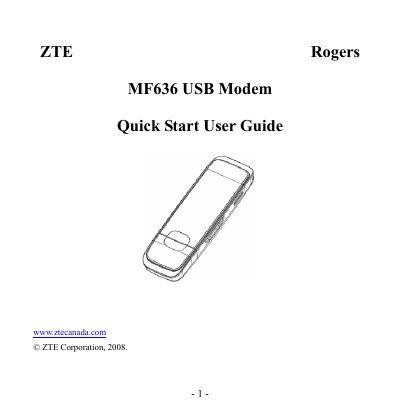
This guide shows how to install the SIM card, connect the ZTE MF636 USB Modem to a PC, and run the initial software installation. It walks you through the Windows and macOS setup processes, including manual launch of the installer if Autorun is disabled.
The document also explains the meaning of the LED status lights, basic functions such as internet connection and messaging, and provides safety instructions for removing the modem. Warranty terms and contact information are included at the end.
| Supported network types | 2G, 3G |
|---|
Locate the SIM slot above the USB connector, place the card with gold contacts down and the beveled edge on the left, then push it in as far as it will go.
Open the CDROM, double‑click the Autorun.exe file to launch the installation wizard manually.
Close the Connection Manager application, use the Safe Hardware Removal procedure, then unplug the modem or USB cable.
Yellow means power on but not registered on a network; green solid means registered on 2G; green blinking means active 2G data transfer; blue solid means registered on 3G; blue blinking means active 3G data transfer; red indicates roaming status.