
Key facts
Start here
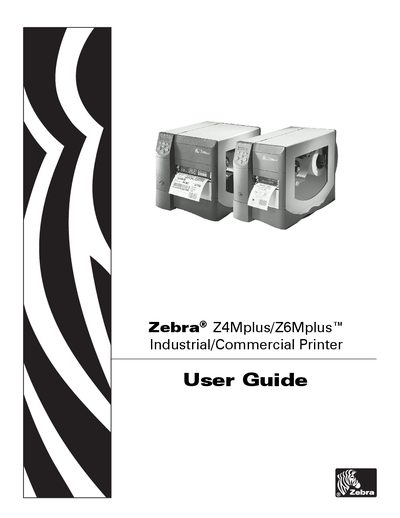
Zebra Z4Mplus/Z6Mplus Industrial/Commercial Printer User Guide
This user guide provides step‑by‑step instructions for unpacking, installing, and configuring the Zebra Z4Mplus/Z6Mplus printer. It covers power connections, communication interfaces, media loading, and printer options.
The manual also details routine care, cleaning procedures, calibration, and troubleshooting tips, along with specifications for media, ribbons, and power cords.
Zebra Z6M specifications
| Height | 338 mm |
|---|---|
| Width | 277 mm (Z4M) / 341 mm (Z6M) |
| Depth | 475 mm |
| Weight | 14.7 kg (Z4M) / 16 kg (Z6M) |
| Power Input | 90‑265 V AC, 48‑62 Hz, 5 A fuse |
| Operating Temperature | 5 °C – 40 °C |
| Storage Temperature | -40 °C – 60 °C |
| Operating Humidity | 20 % – 85 % |
| Storage Humidity | 5 % – 85 % |
| Communication Interfaces | RS‑232, RS‑485, IEEE1284 parallel |
| Print Resolution | 203 dpi (8 dot/mm) – 300 dpi (12 dot/mm) |
| Maximum Print Width | 104 mm (Z4M) / 168 mm (Z6M) |
| Maximum Print Length | 1143 mm (Z4M) / 737 mm (Z6M) |
| Print Speed | 7 – 10 inches per second |
All Zebra Z6M documents by type
Day-to-day operation, settings and troubleshooting. Start here if the product is already set up.
Questions answered in these manuals
How do I clean the exterior of the printer?
Clean the exterior as described in the cleaning procedures section.
From: Zebra Z4Mplus/Z6Mplus Industrial/Commercial Printer User Guide
How can I perform auto calibration?
Use the Auto Calibration function listed under printer calibration steps.
From: Zebra Z4Mplus/Z6Mplus Industrial/Commercial Printer User Guide
How do I clean the Zebra Z4M/Z6M printer?
Follow the cleaning procedures for the exterior, interior, printhead, sensors, and modules as described in the manual.
What should I do if the printer causes radio interference?
Reorient or relocate the receiving antenna, increase separation, use a different circuit, or consult a radio/TV technician.
How can I set up automatic paper detection?
Enter the printer’s menu, go to Media Power Up and Head Close settings, and choose one of the values: Calibration, Feed, or No Motion.