
Key facts
Start here
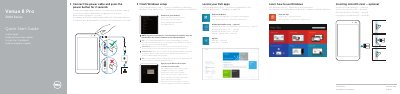
Dell Venue 8 Pro 3000 Series Tablet Quick Start Guide
This is the Dell Quick Start Guide for the Venue 8 Pro 3000 Series tablet, printed in English, Dutch, French, German and Italian. It walks through the first steps: connecting the power cable and pressing the power button for 2 seconds, finishing the Windows setup, signing in to a Microsoft account or creating a local account, locating Dell apps such as My Dell, Register My Device and Dell Backup and Recovery, learning how to use Windows, and connecting to a network from the charms sidebar.
The guide also covers optional steps such as inserting a microSD card, and a features page that numbers the tablet parts, including the ambient-light sensor, front and rear cameras, Service Tag label, speaker, microSD-card slot, microphone, volume buttons, Windows button, battery-charging status light, micro-USB port, power button and headset port. Support and manual links, a contact page and the regulatory model information are listed at the end.
Dell Venue 8 Pro 3000 Series specifications
| Regulatory model | T01D |
|---|---|
| Tablet model | Venue 8 Pro 3845 |
| Ports | Micro-USB port, headset port |
| Card slot | MicroSD-card slot |
| Cameras | Front camera and rear camera |
| Buttons | Volume buttons (2) and Windows button |
| Indicators | Battery-charging status light |
| Labels | Service Tag label and regulatory label |
Source: Dell Venue 8 Pro 3000 Series Tablet Quick Start Guide
All Dell Venue 8 Pro 3000 Series documents by type
The shortest path to a working setup, usually only a few pages.
Questions answered in these manuals
How do I power on the Dell Venue 8 Pro 3000 Series tablet?
Connect the power cable and press the power button for 2 seconds.
How do I connect the tablet to my network?
In the charms sidebar, tap Settings, tap the wireless icon, select your network and tap Connect.
How do I connect to a secured wireless network?
Enter the wireless network password when prompted during setup.
What are the main features of this tablet?
It includes a front and rear camera, ambient light sensor, speaker, microSD card slot, microphone, volume buttons, Windows button, battery-charging status light, micro-USB port, power button, headset port, and regulatory label.
How long should I press the power button?
Press the power button for 2 seconds.
What should I do when connecting to a secured wireless network?
Enter the password for the wireless network access when prompted.