
Guide for connecting SOKKIA or TOPCON total stations to Trimble Access, including cable, RS-232C settings, survey style creation, and data collection.
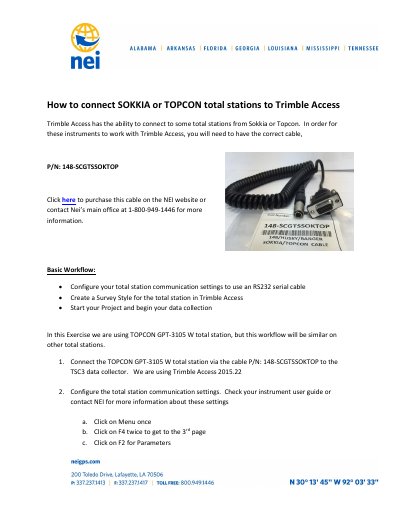
This guide explains how to connect SOKKIA or TOPCON total stations to Trimble Access. It covers the required cable (P/N: 148-SCGTSSOKTOP), RS-232C communication settings, creating a survey style, and starting a job for data collection.
The example uses a TOPCON GPT-3105 W total station with a TSC3 data collector and Trimble Access 2015.22. The workflow is stated to be similar on other total stations.
| Cable part number | 148-SCGTSSOKTOP |
|---|---|
| Example total station | TOPCON GPT-3105 W |
| Data collector | TSC3 |
| Software version | Trimble Access 2015.22 |
| Communication interface | RS-232C serial cable |
| Baud rate | 4800 |
| Character/parity | 8/NONE |
| Survey style type | Conventional |
| Instrument manufacturer in survey style | Topcon |
| Instrument model in survey style | Generic |
Use the cable with part number 148-SCGTSSOKTOP. The guide notes that the correct cable is required for these instruments to work with Trimble Access.
Open Trimble Access on the TSC3 data collector, go to Settings and Survey Style, click New, name the style TOPCON, select the Conventional style type, then choose Topcon as manufacturer, Generic as model, 4800 baud rate, and None for parity.
Start a new job using the TOPCON survey style, select Station Setup, and start connecting to the total station. Once connected, station setup proceeds as usual.