
This guide explains how to download, install, and sign in to Skype for Business on a Windows PC.
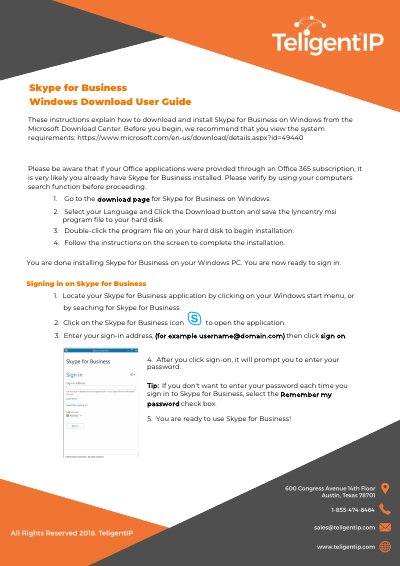
This Skype for Business Windows user guide provides step-by-step instructions for downloading and installing Skype for Business on Windows from the Microsoft Download Center. It also notes that users with an Office 365 subscription may already have Skype for Business installed and should verify before proceeding.
To sign in, open Skype for Business from the Windows Start menu, enter your sign-in address such as [email protected], and enter your password. You can select the Remember my password check box so you do not have to enter your password each time.
Go to the Skype for Business download page, select your language, click Download, save the lyncentry.msi file, double-click it, and follow the on-screen instructions.
Open the application from the Windows Start menu, enter your sign-in address such as [email protected], click sign on, and then enter your password.
Yes, select the Remember my password check box when you sign in.