
Key facts
- Manuals
- 5
- Languages
- EN · ES · ZH
- Last added
- 2026-09-30
Featured Skype manuals

Skype User Manual Tutorial
This tutorial walks you through obtaining Skype from www.skype.com, downloading the appropriate version, and completing the installation process. It includes screenshots for each step, from agreeing to the license to finishing the installer.
After installation, the guide shows how to create a Skype name, configure sound settings, add contacts, and personalize your profile picture. It also covers basic usage tips such as chatting while calling.
Covers: Downloading Skype · Installing Skype · Creating a Skype account · Configuring sound settings · Finding friends and importing contacts · Personalizing profile picture
Skype User Manual
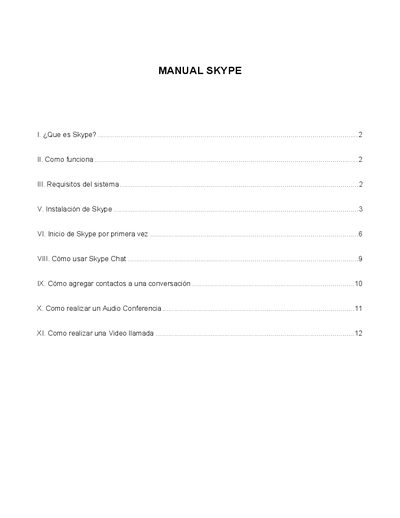
This manual explains what Skype is, how it works, and the hardware and software requirements needed to run the application. It includes both minimum and recommended system specifications for Windows 2000/XP.
The guide walks users through downloading, installing, and first‑time setup, then covers everyday tasks such as adding contacts, using chat, creating audio conferences, and making video calls, with illustrated step‑by‑step instructions. This manual is written in Spanish.
Covers: Qué es Skype · Cómo funciona · Requisitos del sistema · Instalación de Skype · Inicio de Skype por primera vez · Cómo usar Skype Chat
Skype User Manual
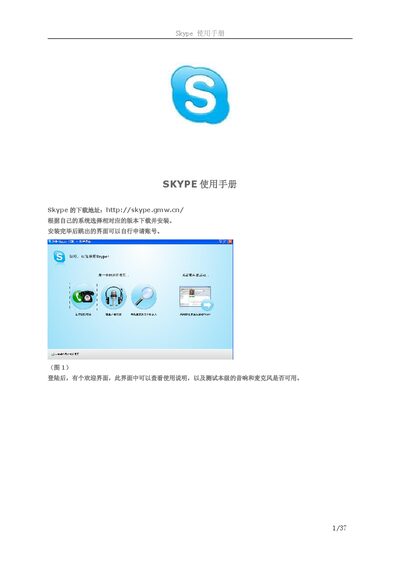
The manual explains how to download the appropriate Windows version, install Skype, create an account and test audio, microphone and camera settings. It also covers editing your personal profile and setting up privacy options.
Further sections describe adding contacts, creating groups, blocking users, chatting, voice and video calls, managing chat history, and details on bandwidth usage and security indicators such as the lock icon during calls. This manual is written in Chinese.
Covers: Editing personal profile · Adding contacts · Creating contact groups · Blocking and unblocking contacts · Video chat setup · Changing password
Skype User Manual
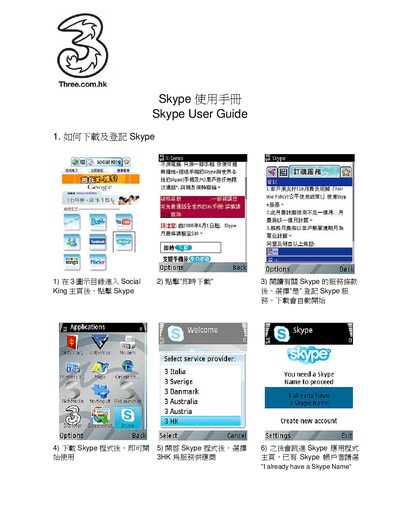
This user manual provides detailed instructions for using Skype, covering download and installation, account registration, making calls, and adding contacts. It includes both Chinese and English instructions to help users of either language.
The guide is organized into four main sections: downloading and logging in, creating a new account, making a call, and adding a contact. Each section lists the required actions with screen‑click steps and options. This manual is written in Chinese.
Covers: Downloading and Installing Skype · Creating a New Skype Account · Making a Skype Call · Adding a Contact
Latest Skype manuals
Skype User Manual Tutorial
User Manual 21 pages · 2.4 MB · ENStep‑by‑step guide for downloading, installing, and setting up Skype on your computer.
Skype User Manual
User Manual 12 pages · 1.1 MB · ESThe Skype User Manual provides installation steps, system requirements, and instructions for calls, chat, and video features.
Skype User Manual
User Manual 37 pages · 1.6 MB · ZHStep‑by‑step guide for installing, configuring and using Skype on Windows.
Skype User Manual
User Manual 10 pages · 666 KB · ZHStep‑by‑step guide for downloading, installing, signing in, creating an account, making calls, and adding contacts in Skype.
Skype voice gateway user manual
Which document do I need?
User Manual
Day-to-day operation, settings and troubleshooting. Start here if the product is already set up.
Questions answered in Skype manuals
How can I change my profile picture in Skype?
Open the Personalize menu, select “Change your picture,” then browse for or take a new photo.
What should I do if I don’t have a Skype name?
Click the “Don’t have a Skype Name?” link and follow the prompts to create a name and password.
What are the minimum system requirements for Skype?
You need a PC with Windows 2000 or XP, a 400 MHz processor, 128 MB RAM, 15 MB free disk space, sound hardware, a microphone and an Internet connection.
From: Skype User Manual
How do I download and install Skype?
Open the Social King portal, click “Skype”, then select “Download now”. Confirm the download and the installer will start automatically.
From: Skype User Manual
How can I create a new Skype account?
In the Skype main page, click “Create new account”, accept the terms, enter a desired Skype name and password, then click “OK” and “Done”.
From: Skype User Manual