
University of Oxford graduate accommodation guide for setting up a Netgear AC1200 router with a PPPoE Eduroam remote access login, plus common problems.
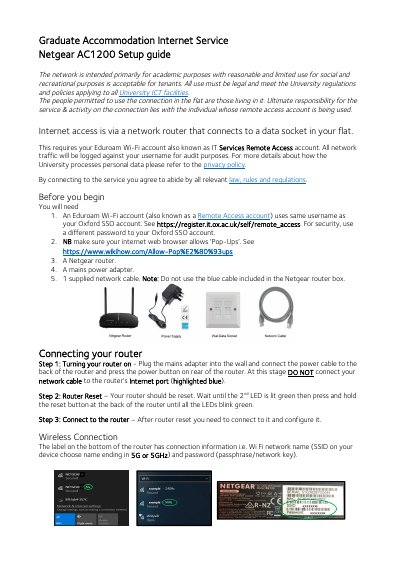
This four-page guide from the University of Oxford Graduate Accommodation Internet Service explains how to set up a Netgear AC1200 router on the university network. It lists what you need before you begin (an Eduroam remote access account, a browser that allows pop-ups, the Netgear router, a mains power adapter and the supplied network cable) and notes not to use the blue cable included in the router box. It then goes through turning the router on, resetting it until all LEDs blink green, and connecting to it wirelessly using the SSID and password printed on the label on the bottom of the router.
The guide continues with the management interface at http://www.routerlogin.net or http://192.168.1.1, setting an admin password and security questions, and configuring the Internet connection: ISP set to PPPoE with the Single Sign On username including @OX.AC.UK and the Remote Access (Eduroam) password, followed by the connection test. A Common Problems section covers failures at 192.168.1.1, missing test success, pop-ups and LED states, and an FAQ explains how to report a problem and how to reset the router before leaving the accommodation.
| Management Interface Address | http://www.routerlogin.net or http://192.168.1.1 |
|---|---|
| Admin Login Username | admin |
| ISP Connection Type | PPPoE |
| Wi-Fi Settings Location | Label on the bottom of the router (SSID ending in 5G or 5GHz, and password/network key) |
| Reset Before Leaving | Hold the reset button for at least 10 seconds until all lights come on, which wipes the logon credentials |
Connect to the router wirelessly, then open a web browser and type http://www.routerlogin.net or http://192.168.1.1.
Set the Internet Service Provider to PPPoE, enter your Single Sign On username including @OX.AC.UK, and use your Remote Access (Eduroam) password.
It means the Eduroam Remote Access password entered at Step 9 is failing to authenticate; retry entering that password.
Call 01865 280923 or email [email protected] with your SSO username, contact email and telephone number, site/building/room and how you are connecting.