
Quick installation guide for Mercury wireless USB network card, covering hardware setup, driver installation, and network connection steps.
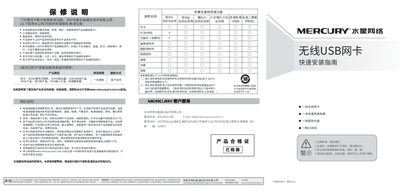
This guide provides step‑by‑step instructions for installing the Mercury wireless USB network card. It starts with hardware installation, then walks you through driver installation from the supplied CD, and finally shows how to connect to a wireless network, including entering passwords for encrypted networks.
The manual also includes warranty information, service contact details, and environmental compliance notes required by Shenzhen Meikexing Communication Technology Co., Ltd. This manual is written in Chinese.
Insert the supplied CD, let the drive read it, and click “Automatic Install” when the installation wizard appears.
Select “Always install this driver software” in the Windows security window to continue the installation.
When a wireless network name shows an icon before it, the connection has been established successfully.