
This document provides specifications and safety information for Dell computers.
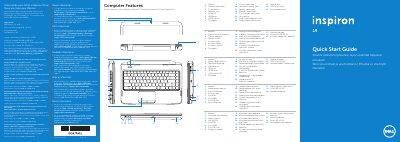
This document is the Quick Start Guide for the Dell Inspiron M4040/14-N4050/3420 laptop (regulatory model P22G, types P22G001, P22G002 and P22G004). It is printed in multiple languages, including English, Spanish, Czech, Hungarian, Polish and Slovak.
The guide identifies the computer's features with a numbered diagram (camera, ports, touchpad, media-card reader, optical drive and status lights), walks through first-time setup steps such as connecting the power adapter, completing Windows setup and checking wireless status, lists function-key shortcuts, and includes Mexican NOM regulatory and electrical input information. It also directs users to Dell support resources and explains where to find the service tag.
| Regulatory model number | P22G |
|---|---|
| Input voltage | 100–240 VAC |
| Maximum input current | 1.50 A / 1.60 A / 1.70 A |
| Input frequency | 50–60 Hz |
| Ports and connectors | Network, VGA, HDMI, USB 2.0, audio, 3-in-1 media-card reader, power-adapter port |
| Optical drive | Included |
| Keyboard backlight | Optional |
No. The guide notes that you should not use the @ symbol in your Windows password.
Use the function key combination listed under Function Keys to turn wireless off/on, then check the wireless-status light to confirm the state.
The guide includes a section on locating your service tag and a space to record it, and it can also be used when contacting Dell support.
Go to dell.com/ContactDell; customers in the United States can call 800-WWW-DELL (800-999-3355).