
Blackmagic Video Assist is a versatile monitor and recorder that can be used with any camera and on any project. It has a 6G-SDI input so it will monitor Ultra HD. Blackmagic Video Assist 4K records Ultra HD on two SD cards for continuous recording and is also a powerful audio recorder, so you can mix analog audio into the SDI or HDMI recording.
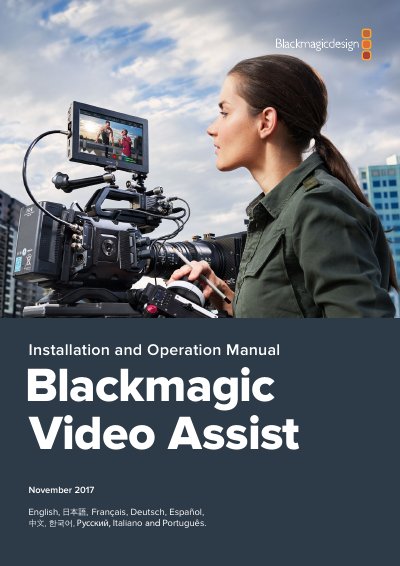
Blackmagic Design Video Assist 4K is a compact monitor and recorder that can be mounted on a camera or used on a desk. It supports SDI or HDMI video input, embedded audio, and external balanced analog audio via mini XLR connectors.
The manual explains getting started, recording, playback, settings, SD card use, and post-production workflow with DaVinci Resolve. It covers power, video and audio connections, SD card insertion and formatting, recording controls, continuous recording, and software updates.
| Video input | 6G-SDI |
|---|---|
| Recording media | Two SD cards |
| Battery type | LP-E6 type Lithium-Ion |
| Power input | +12V |
| Analog audio input | Mini XLR connectors |
| Recommended SD card type | UHS-II |
| Recommended SD card write speed | Above 110MB/s |
| Recording formats | QuickTime files using Apple ProRes and Avid DNx codecs |
Swipe the touchscreen up or down to reveal the on screen display, then tap the record icon.
SD cards must be formatted to HFS+ or exFAT.
Yes. When the first card is full, the unit switches to the second card without dropping frames.
Press the power button on the right side panel.