
This document is a quick start guide for connecting Motorola WinLMF to MT8222A BTS Master.
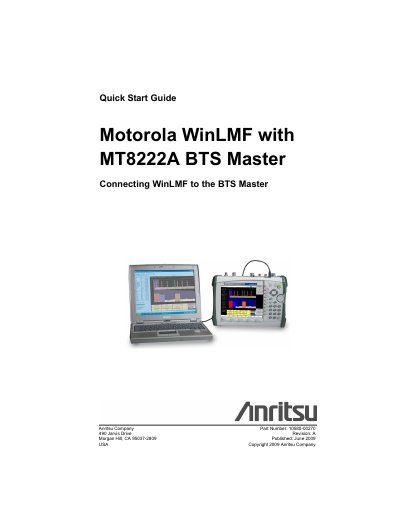
This quick start guide describes how to set up and operate the handheld Anritsu MT8222A BTS Master for use with Motorola WinLMF to perform calibration and acceptance test procedures on Motorola CDMA base stations. It lists the tools needed to establish the connection and walks through the instrument's Ethernet configuration, including IP, gateway and subnet mask entry, followed by a reboot.
The guide then covers checking the MT8222A package version (V1.48 or above is required), setting up the PC network connection, updating the firmware if needed, and configuring WinLMF to detect the instrument. A final section explains how to connect a Motorola base station to the PC using a 10BASE-2 BNC connector, with three BTS-to-PC connection options.
| Required application firmware revision | V1.48 or above |
|---|---|
| BTS Master IP address setting | 128.0.0.49 |
| Gateway (G-Way) setting | 128.0.0.48 |
| Subnet mask setting | 255.255.255.0 |
| PC-to-instrument cable | RJ-45 Ethernet Crossover Cable (Anritsu Part Number 3-806-152) |
| BTS LAN connector | 10BASE-2 BNC connector |
| Maximum BNC cable length (Option 3) | 91 cm (3 ft) |
The BTS Master must be loaded with application firmware version 1.48 or above. The package version is checked in the Status window under System Options.
An RJ-45 Ethernet Crossover Cable, Anritsu Part Number 3-806-152.
With Connection Type set to Network, enter 128.0.0.49 in the IP box and press Detect.
In the Ethernet Test equipment section, select Agilent E7495.