
This document introduces how to stream JVC camcorders GY-HM200 and GY-LS300 to Facebook Live, YouTube and Ustream, including the setup of network streaming, IP address verification, RTMP URL and Stream Key acquisition, and Stream button setting.
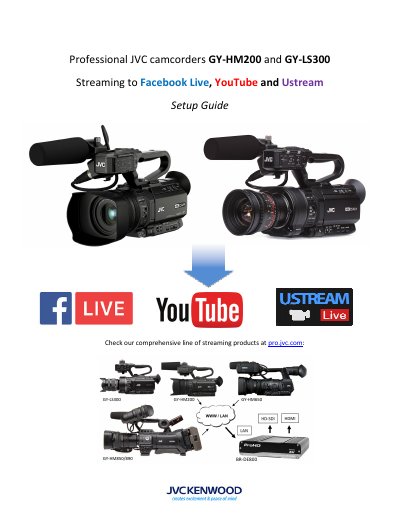
This guide explains how to configure JVC GY-HM200 and GY-LS300 camcorders for live streaming to platforms like Facebook Live, YouTube, and Ustream. It covers selecting recording formats, connecting via Wi-Fi or USB adapters, accessing camera settings through a browser, and configuring RTMP URLs and stream keys. The document also details how to assign a user button for live streaming and recommends bitrate settings based on upload speed and video type.
The guide includes troubleshooting tips such as using JVC-certified adapters, resetting the camera if connectivity issues occur, and verifying the camera’s IP address using the Status button. It provides specific instructions for obtaining RTMP credentials from Ustream and YouTube, and includes a table for selecting optimal streaming formats and bitrates based on connection type and video motion.
| Supported Streaming Formats | 270p, 480i, 720p, 1080i, 4K |
|---|---|
| Recommended Streaming Resolution | 720p for Ustream / YouTube |
| Streaming Bitrates | 0.2 Mbps to 12 Mbps |
| Default User Credentials | Username: jvc, Password: 0000 |
| Default IP Address | 192.168.1.109 |
Plug the USB adapter into the camera, enable the network function, and connect to Wi-Fi. Verify the IP address using the Status button.
The default IP address is 192.168.1.109, though this may vary.