
HP OfficeJet Pro 7740 Wide Format All-in-One series User Guide Copyright information © 2020 HP Development Company, L.P. HP Company notices The information contained in this document is subject to change without notice. All rights reserved. Reproduction, adaptation, or translation of this material is prohibited without prior written permission of HP, except as allowed under copyright laws. The only warranties for HP products and services are set forth in the express warranty statements accompanying such products and services. Nothing herein should be construed as constituting an additional warranty. HP shall not be liable for technical or editorial errors or omissions contained herein. Acknowledgements Microsoft and Windows are either registered trademarks or trademarks of Microsoft Corporation in the United States and/or other countries. ENERGY STAR and the ENERGY STAR mark are registered trademarks owned by the U.S. Environmental Protection Agency. Mac, OS X, and AirPrint are trademarks of Apple Inc., registered in the U.S. and other countries. Safety information Always follow basic safety precautions when using this product to reduce risk of injury from fire or electric shock. - Read and understand all instructions in the documentation that comes with the printer. - Observe all warnings and instructions marked on the product. - Unplug this product from wall outlets before cleaning. - Do not install or use this product near water, or when you are wet. - Install the product
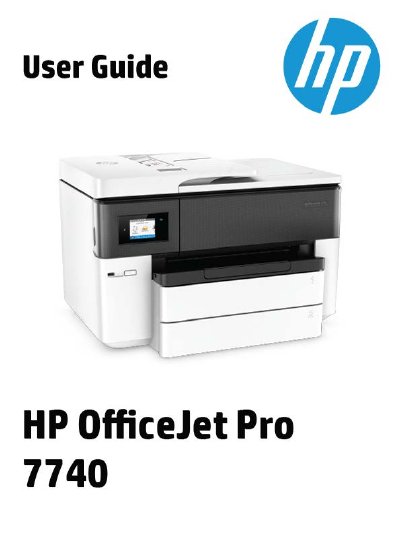
The document serves as a comprehensive manual for the HP OfficeJet Pro 7740 Wide Format All-in-One series. It provides detailed instructions on safety precautions, initial setup including wireless network configuration, and managing power settings such as Quiet Mode.
The guide covers core functionalities including printing documents, photos, and special media; copying and scanning to various destinations like email or memory devices; and sending/receiving faxes with specific setup scenarios for different phone systems. It also includes sections on working with ink cartridges, using mobile apps, and utilizing network management tools.
| Operating temperature | 5° to 40° C (41° to 104° F) |
|---|---|
| Operating humidity | 15 to 80% RH non-condensing |
| Tray 1 capacity (Plain paper A size) | Up to 250 sheets |
| Maximum scan size from document feeder (One-sided) | 216 x 356 mm (8.5 x 14 inches) |
| Fax transmission speed | 33.6 Kbps |
The recommended operating temperature is 15° to 32° C (59° to 90° F) and relative humidity should be 20 to 80% noncondensing.
Tray 2 can hold up to 250 sheets of A size plain paper or up to 125 sheets of B size plain paper.
The maximum one-sided scan size from the document feeder is 216 x 356 mm (8.5 x 14 inches).