
This guide describes how to install the Linksys WMP54G Wireless PCI Adapter
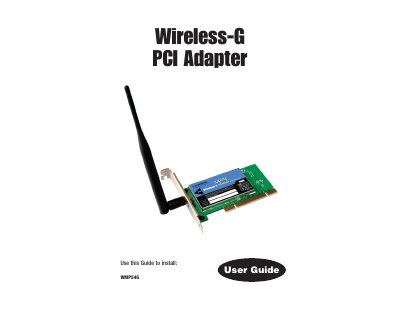
The Linksys WMP54G Wireless‑G PCI Adapter provides 54 Mbps wireless connectivity for desktop PCs. This guide covers hardware installation, driver setup, and network configuration for Windows XP, 98SE, Me and 2000, including both infrastructure and ad‑hoc modes.
It also includes regulatory information, specifications, troubleshooting tips, warranty details and contact information for Linksys technical support.
| Dimensions | 122 mm × 220 mm × 23 mm |
|---|---|
| Unit Weight | 0.13 kg |
| Certifications | FCC, CE |
| Operating Temperature | 0 °C to 65 °C |
| Storage Temperature | -40 °C to 85 °C |
| Operating Humidity | 0 % to 95 % non‑condensing |
| Interface | PCI |
| Transmit Power | 15 dBm |
| LED Indicator | ACT |
| WEP Key Length | 64‑bit and 128‑bit |
Turn off the PC, open the case, locate an available PCI slot, slide the adapter fully into the slot, secure it with the mounting screw, attach the external antenna, and power the PC back on.
Insert the setup CD‑ROM; Windows XP will automatically detect the adapter and launch the installation wizard. Follow the prompts and click Finish when the driver installation completes.
Open the Wireless Zero Configuration icon, select the desired network, and when prompted, enter the network’s WEP key in the Network key field, confirm it, and click Connect.