
Dell 3333dn and 3335dn Laser MFP User's Guide, this manual introduces the features of the Dell 3333dn and 3335dn Laser Multifunction Printers, including safety information, printer configuration, selecting a printer location, basic scanning functions, printer control panel and using touch-screen buttons
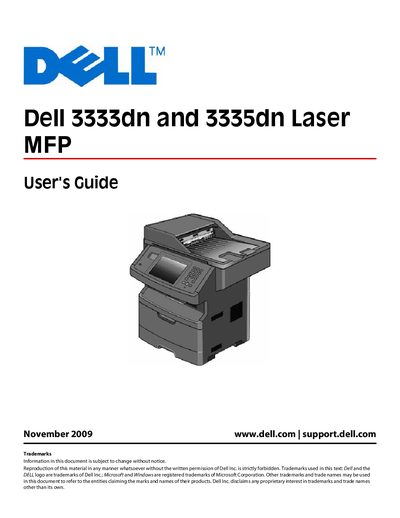
This Dell User's Guide covers the 3333dn and 3335dn Laser MFP printers. It includes safety information, hardware installation, internal options, and detailed instructions for configuring network, wireless, and serial connections. The guide also explains how to use the touch‑screen controls, ADF scanner, and printer menus.
Additional sections describe paper handling, tray linking, copy and fax functions, environmental settings, and troubleshooting tips. The document ends with an index and references to Dell support resources.
Follow the steps in the "Setting up wireless printing" section, which provides the information needed to connect the printer to a wireless network and install the software.
Use the "Linking ANd UNLINKING trays" procedure described in the guide to assign or release trays and customize paper type names.
The guide’s "Installing internal OPtiONS" section details how to access the system board and install memory cards, flash cards, hard disks, and other internal modules.
The "Dell Printer Alert Utility" provides status monitoring and alerts for the printer.