
Key facts
Start here
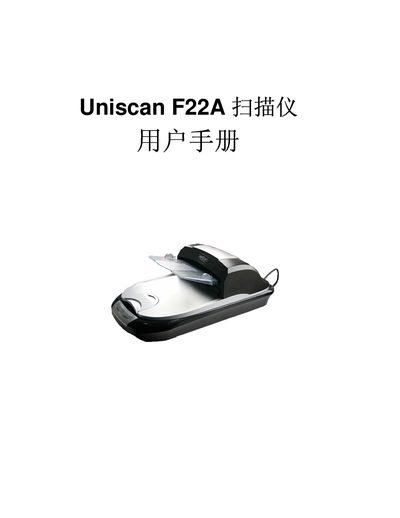
Uniscan F22A Scanner User Manual
This manual covers the basic installation steps for the Uniscan F22A scanner, including power connection, USB interface setup, and driver installation using the provided InstallShield Wizard. It also explains how to configure the scanner for use with Windows and provides basic operating guidance.
Additional sections address troubleshooting common issues, such as USB communication problems and driver errors, and include reference tables for power specifications and supported USB standards.
Uniscan F22A specifications
| Maximum document length | 5 meters |
|---|---|
| Maximum document thickness | 5 mm |
| Power supply | 24V 1.25A |
| USB interface | USB 1.1 or 2.0 |
| Light source | LED |
Source: Uniscan F22A Scanner User Manual
All Uniscan F22A documents by type
Day-to-day operation, settings and troubleshooting. Start here if the product is already set up.
Questions answered in these manuals
How do I install the driver for the Uniscan F22A scanner?
Run the Uniscan F22A InstallShield Wizard and follow the on‑screen prompts to install the driver.
What power supply does the Uniscan F22A require?
The scanner needs a 24 V power source delivering up to 1.25 A.
How do I install the scanner driver?
Insert the supplied CD, run SETUP.EXE and follow the Install Shield Wizard prompts to install the driver.
Can the scanner handle multi‑page documents?
Yes, the automatic document feeder can scan multi‑page documents up to 5 mm thick and up to 5 m in length, storing them as a single file.