
Key facts
Start here
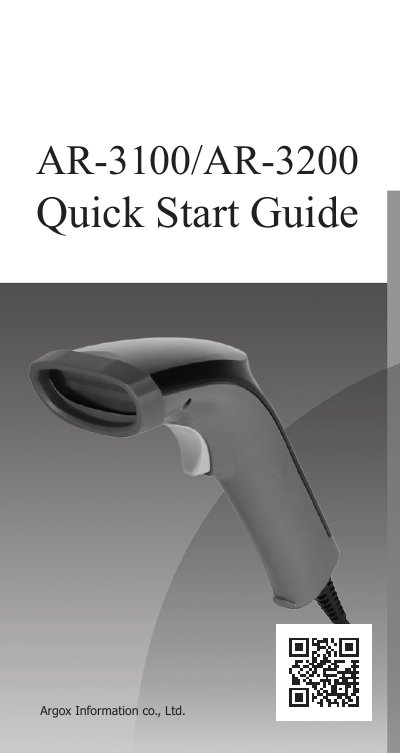
Argox AR-3100/AR-3200 Barcode Printer Quick Start Guide
This guide helps users set up the Argox AR-3100/AR-3200 barcode printer by connecting it via USB, RS-232, or RJ45. It covers interface settings, scan modes, keyboard layouts, and barcode support including Code128, GS1-128, and EAN-13. The printer auto-detects connections and defaults to standard configurations for easy initial use.
The guide also explains how to test the scanner with text programs like Notepad, adjust baud rates and flow control, and configure suffix characters. Barcode support is extensive, with default activation for many standards and manual activation for others like Industrial 2 of 5 or GS1 Databar. This manual is written in Chinese.
Argox AR-3100 specifications
| Light Source | Red LED |
|---|---|
| Scan Pattern | Linear Imager(CCD) |
| Scan Rate | 500 scans/sec |
| Input voltage | 5V DC ± 5% |
| Power - operating | 215mA @ 5VDC Max(USB) |
| EMI/RFI Compliance | CE, FCC, BSMI, BIS |
All Argox AR-3100 documents by type
Day-to-day operation, settings and troubleshooting. Start here if the product is already set up.
The shortest path to a working setup, usually only a few pages.
Questions answered in these manuals
What interfaces does the scanner support?
The scanner supports USB (HID/Virtual COM) and RS-232 interfaces.
What is the scan width for Code 39 at 20mil?
The scan width is 25.7cm for Code 39 at 20mil.
How do I connect the scanner to my computer?
Plug the RJ45 connector into the scanner’s RJ45 port, then connect USB or RS-232 to your computer. If using a power supply, connect it to the RS-232 cable and wall outlet.
From: Argox AR-3100/AR-3200 Barcode Printer Quick Start Guide
What connectors are used to connect the scanner to a computer?
USB or RS-232 connector.
From: Argox AR-3100/AR-3200 Barcode Printer Quick Start Guide