
The SKF GoPlant User Manual explains how to set up, navigate, and administer the GoPlant asset inspection software.
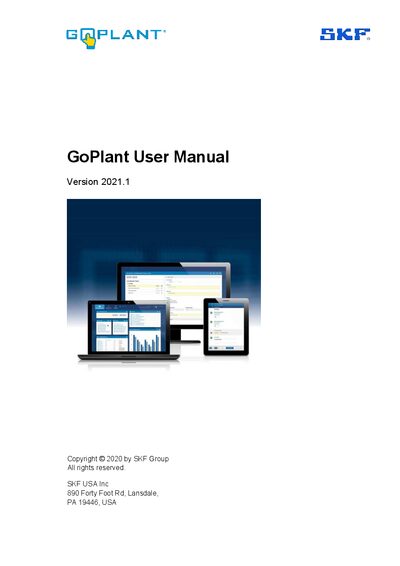
This manual provides step‑by‑step instructions for installing the GoPlant mobile app, accessing the online client, and configuring dashboards, widgets, and reports. It also details user roles, admin functions, and integration with SKF Pulse/QuickCollect sensors.
The guide covers troubleshooting, exception handling, and exporting data, helping both new and experienced users manage asset inspections efficiently.
| Version | 2021.1 |
|---|
The default username is “starthere” and the default password is “pass1”, but the account is disabled after initial setup.
After entering the URL, press the blue Verify button; a green “Success Ready to Login: 200” message indicates a successful connection.
Use the Export button on the Exception Details panel to download the displayed information as a .csv file.