
This manual explains how to activate an account, install the WeLink client, log in, upload, share, and download files using Huawei's WeLink cloud storage.
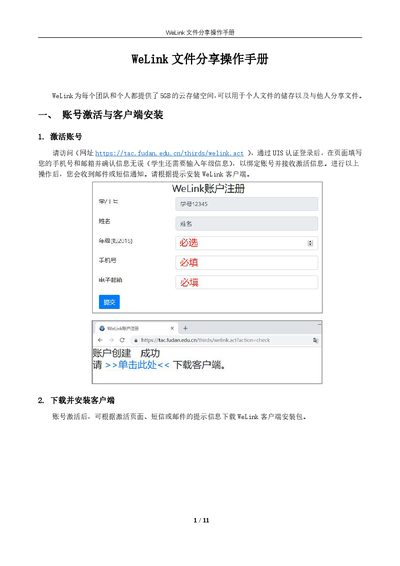
The guide starts with account activation, requiring users to visit the activation URL, log in via UIS authentication, and bind a phone number and email. After activation, the WeLink client can be downloaded for Windows, Android, or iOS and installed on the device.
Subsequent sections cover logging in, uploading files to personal or team spaces, sharing files via direct user invitation or link sharing, and downloading shared files on both PC and mobile clients. The mobile app can view common file formats, while unsupported formats must be accessed through the desktop client. This manual is written in Chinese.
| Cloud storage capacity per user/team | 5 GB |
|---|
Visit the activation URL, log in via UIS authentication, enter your phone number and email (students also provide grade information), then receive an activation email or SMS.
The mobile client can view common formats such as images, documents, and videos; uncommon formats can only be shared or saved to personal space and cannot be opened or downloaded on mobile.