
Install and configure the Extreme Networks E1120 ExtremeCloudTM device with step-by-step instructions for rack mounting, power, and network setup.
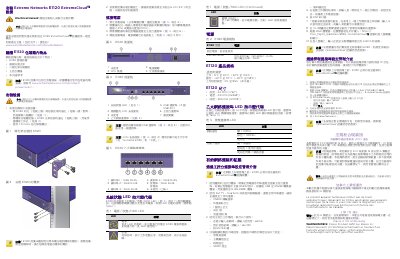
This guide provides step-by-step instructions for installing and configuring the Extreme Networks E1120 ExtremeCloudTM device. It covers rack mounting, power connection, network setup, and initial configuration using a console cable and web interface. The device requires a separate power cord and does not include rack-mount screws. Initial setup includes setting an admin password and configuring network settings via CLI or web browser. Firmware upgrades are recommended before network deployment. This manual is written in Chinese.
| Dimensions | Height: 44 mm (1.732"), Width: 431 mm (16.969"), Depth: 305 mm (12.008") |
|---|---|
| Operating Temperature | 5°C to 40°C (32°F to 104°F) |
| Storage Temperature | -40°C to 70°C (-40°F to 158°F) |
| Operating Humidity | 0% to 95% (non-condensing) |
| Power Supply | FSP150-50LE, 100-240Vac, 50-60Hz, 4-2A, Max Output Power: 150W |
The package includes the E1120 device, two mounting brackets, six mounting screws, a console cable, and this quick reference guide.
Connect a separate AC power cord to the power port, then plug the other end into a grounded outlet or power distribution unit.
The default IP address is 192.168.10.1 for the management port.
The default admin password is 'abc123'.