
The Extreme Networks XR600 router quick reference guide provides an overview, hardware components, LED indicators, power, ports, installation and safety…
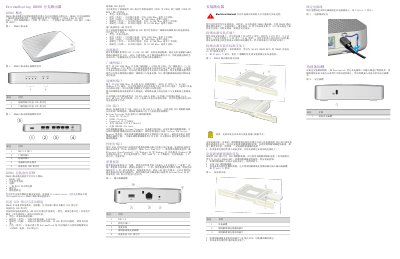
The XR600 router enables branch office and remote office networking with two WAN ports, four LAN ports, a console port and two USB ports. LED indicators on the top, front panel and near each port show power, connection and activity status.
The guide details power connection using the supplied 54 V DC adapter, installation options (desktop, wall‑mount, rack), safety precautions, reset procedure and regulatory compliance statements for multiple regions. This manual is written in Chinese.
| WAN ports | 2 (WAN0/ETH0 and WAN1/ETH1) |
|---|---|
| LAN ports | 4 (ETH2 to ETH5) |
| USB ports | 2 (USB 2.0 and USB 3.0) |
| Power adapter rating | 54 V, 1.67 A, 90.18 W DC |
| Input voltage range | 100‑240 V AC |
| Ethernet speed support | 10/100/1000 Mbps |
| LED status colors | Black, amber, white, green |
The XR600 has two WAN ports, labeled WAN0/ETH0 and WAN1/ETH1.
Use the supplied 54 V DC adapter rated at 1.67 A (90.18 W) with an input range of 100‑240 V AC.
Insert a pin into the reset hole and hold for at least 5 seconds; the device will restart and restore default settings.
A steady white LED indicates the device has established a CAPWAP connection to ExtremeCloud IQ and is operating normally.