
Troubleshooting guide for Analog Devices emulators and evaluation boards used with CrossCore Embedded Studio.
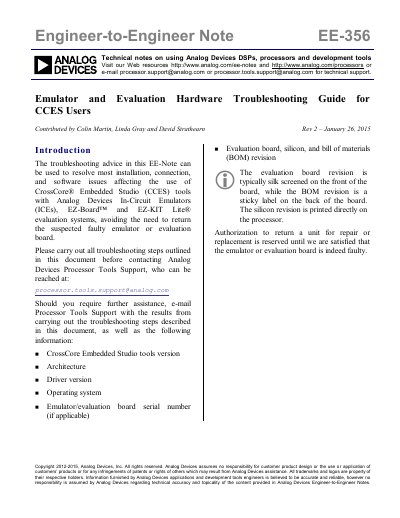
This document provides step‑by‑step troubleshooting procedures for Analog Devices In‑Circuit Emulators (ICE‑100B, ICE‑1000, ICE‑2000), EZ‑Board™ and EZ‑KIT Lite® evaluation systems when used with CrossCore Embedded Studio (CCES). It covers driver installation, launch‑configuration testing, JTAG scan tests, and common error codes.
The guide also includes hardware‑specific checks such as USB cable length limits, LED status indicators, power‑up sequences, and jumper settings for SADA2 and ICE‑100B boards, helping engineers isolate and resolve connection or hardware faults before initiating a return‑for‑repair.
| Supported OS (32‑bit) | Windows XP Professional SP3 |
|---|---|
| Supported OS (64‑bit) | Windows 7 Professional/Enterprise/Ultimate |
| Default driver for 32‑bit OS | WmUsbIce.sys |
| Default driver for 64‑bit OS | WmUsbIce64.sys |
| Maximum USB cable length | 3 meters |
| LED status – power applied | Green |
| LED status – session or test active | Amber |
The guide recommends using a USB cable no longer than 3 meters.
The 'Enable/Power' LED should be green when power is applied and amber when a session or the ICE Test utility is active.