
This is a photo frame that can insert SD card, USB and other storage devices. After connecting the power supply and turning it on, the photos stored in the storage device will be played automatically. You can choose the playback mode in the settings, such as slideshow, browsing, calendar, etc.
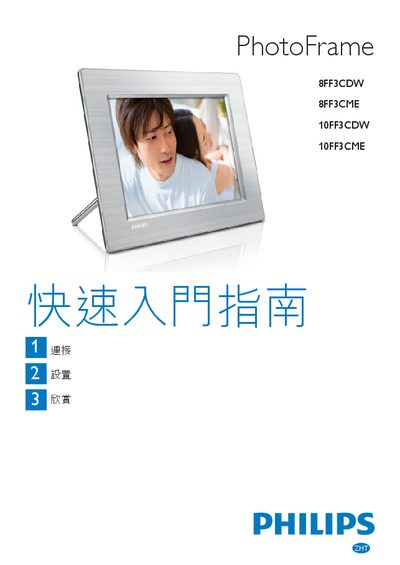
The guide walks you through connecting the AC‑DC power adapter, inserting supported storage media (CompactFlash, SD, SDHC, etc.), installing the stand, and selecting the display language. It then covers operating modes such as slideshow, collage, photo browsing, calendar view, and configuring smart‑sleep, automatic orientation, and RadiantColor display options.
Additional sections provide troubleshooting tips, how to register the product online, and answers to common questions about photo format compatibility, sleep settings, and creating new albums or event reminders. This manual is written in Chinese.
| Supported storage media | Compact Flash type I, Secure Digital (SD), Secure Digital (SDHC), Multimedia Card, xD, Memory Stick, Memory Stick Pro, Memory Stick Duo, Memory Stick Pro Duo |
|---|---|
| Power source | AC‑DC transformer with DC plug |
| Display modes | Slideshow, Collage, Photo, Calendar |
Plug the AC‑DC power adapter into the PhotoFrame’s DC socket and then connect the adapter to a wall outlet.
From the main menu select Settings → Language, choose the desired language, and press OK to confirm.
Open Settings → Options → Automatic Orientation, select Enable, and press OK.