
Latitude 5289 2-in-1 Quick Start Guide
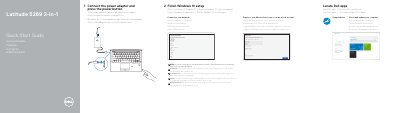
The Dell Latitude 5289 2-in-1 quick start guide gives setup steps for connecting the power adapter, pressing the power button, finishing Windows 10 setup, connecting to a network, and signing in to a Microsoft account or creating a local account. It also points to Dell apps, including SupportAssist for checking and updating the computer.
The guide includes a labeled feature list for the computer, covering the camera, USB 3.0 ports, HDMI port, DisplayPort over USB Type-C, SD card reader, SIM card tray, and optional IR camera, fingerprint reader, NFC sensor, and smart card reader. It lists Dell support, contact, and regulatory and safety links and identifies the computer model as Latitude 5289 2-in-1.
| Computer model | Latitude 5289 2-in-1 |
|---|---|
| USB 3.0 port | With PowerShare |
| HDMI port | Included |
| DisplayPort over USB Type-C | Included |
| SD card reader | Included |
| SIM card tray | Included |
| Universal combo jack | Global headset jack + microphone-in + line-in support |
| Fingerprint reader | Optional |
| NFC sensor | Optional |
| Smart card reader | Optional |
| IR camera | Optional |
Connect the power adapter and press the power button.
Windows 10.
SupportAssist.
Enter the password for the wireless network access when prompted.