
OptiPlex 3240 All-in-One Quick Start Guide, introduces the features and functions of the OptiPlex 3240 All-in-One.
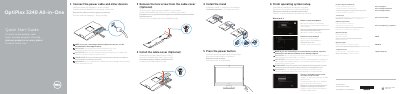
This quick start guide provides setup steps for the Dell OptiPlex 3240 All-in-One. It covers connecting the power cable and other devices, removing the torx screw and installing the cable cover, installing the stand, pressing the power button, and completing operating system setup.
The guide also lists the computer's features and connectors, including the microphone, camera, optical drive, On-Screen Display buttons, status lights, power button, audio and DisplayPort connectors, HDMI-out connector, USB ports, network connector, power-cable connector, cable cover, security-cable slot, stand, service tag label, headset connector, PowerShare USB port, and memory card reader. Support and regulatory information refer to Dell websites.
| Regulatory model | W14B |
|---|---|
| Regulatory type | W14B001 |
| Computer model | OptiPlex 3240 AIO |
See the documentation that shipped with the wireless keyboard or mouse.
Follow the instructions on the screen to finish setup.
See the Owner’s Manual at dell.com/support.
Enter the password for the wireless network access when prompted.