
The Dell Precision Tower 3420 Quick Start Guide provides instructions on how to connect the keyboard and mouse, network cable, power cord, and display, as well as how to finish Windows 10 setup.
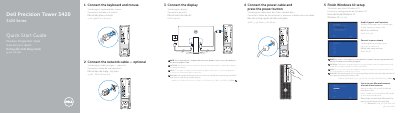
This two-page quick start guide for the Dell Precision Tower 3420 walks through the first-time setup steps: connecting the keyboard and mouse, connecting the network cable (optional), connecting the power cable and pressing the power button, connecting the display, finishing Windows 10 setup, enabling Support and Protection, connecting to a network and signing in with a Microsoft account or a local account. Notes cover connecting the display to a discrete graphics card if one was ordered and entering the wireless network password when prompted.
The second page lists the computer's features with numbered callouts for the front and back connectors, from the optical drive, USB, HDMI, DisplayPort, VGA (optional), serial, PS/2 and network connectors to the power-supply diagnostic button and light, expansion-card slots and security cable slot. The same instructions are repeated in Indonesian, Spanish, Vietnamese and Arabic, and Dell support, manuals, Windows support, contact and regulatory compliance web addresses are given.
| Computer model | Dell Precision Tower 3420 |
|---|---|
| Regulatory model | D11S |
| Regulatory type | D11S001 |
| Video connectors | HDMI connector, DisplayPort connectors, VGA port connector (optional) |
| USB connectors | USB 2.0 and USB 3.0 connectors; USB 2.0 connectors support ACPI S5 wakeup |
| Other connectors | PS/2 keyboard connector, PS/2 mouse connector, serial port connector, network connector, headset connector, line-out connector |
| Card slots | SD card reader (optional), expansion-card slots |
| Security | Security cable slot, padlock ring, cable-cover lock slot |
Connect the display to the discrete graphics card rather than the onboard connector.
Enter the password for the wireless network access when prompted.
Dell lists product support and manuals at Dell.com/support/manuals, with general support at Dell.com/support.
Sign in to your Microsoft account or create a local account.