
A setup guide for a Dell™ computer, including connecting the AC adapter, modem, and network, and turning on the power and wireless switch.
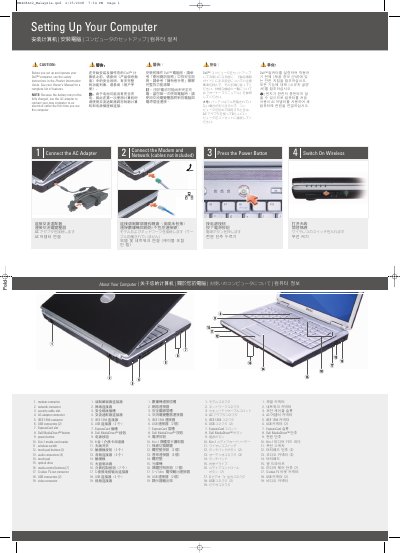
This guide explains how to set up a Dell Inspiron 1420 computer, including connecting the AC adapter, modem, and network, pressing the power button, and switching on wireless. It also identifies the computer's ports and controls, such as the modem and network connectors, USB connectors, ExpressCard slot, media card reader, touch pad, optical drive, and video connectors.
An optional wireless network section lists the equipment needed for a wireless connection, including Internet service, a cable or DSL modem, a wireless router, and a portable computer with a wireless network card. The document directs readers to the Owner's Manual and support.dell.com for more information.
| USB connectors | 4 total (2 on each side) |
|---|---|
| Audio connectors | 3 |
| Media card reader | 8-in-1 |
| Media control buttons | 7 |
| Touch pad buttons | 2 |
| IEEE 1394 connector | 1 |
Use the AC adapter to connect the new computer to an electrical outlet the first time you use it, because the battery may not be fully charged.
Press the power button, which is item 9 in the computer feature list.
The listed equipment includes Internet service, a cable or DSL modem, a wireless router, an optional desktop computer with a network adapter, and a portable computer with a wireless network card.
See the Owner's Manual, or click the Documentation and Support icon on the desktop or go to support.dell.com.