
HP Deskjet F4100 All-in-One series Basics Guide
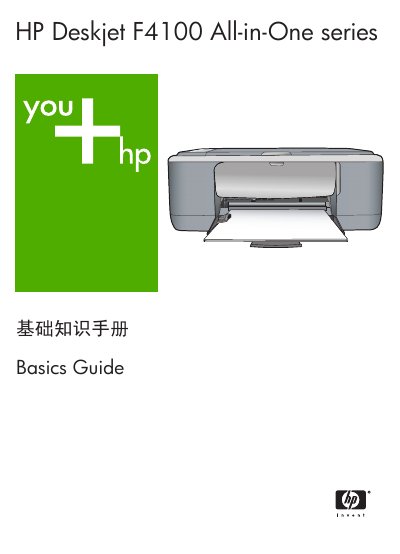
This Basics Guide introduces the HP Deskjet F4100 All-in-One series, a versatile device that lets you copy, scan and print. It describes the parts of the HP All-in-One, the control panel buttons and status lights, how to load originals on the glass, and how to make copies and scan to a computer.
The guide also provides troubleshooting and support information, including uninstalling and reinstalling the software, resolving hardware installation problems, clearing paper jams and cartridge troubleshooting, plus technical specifications such as paper, physical, power and environmental specifications and regulatory information. This manual is written in Chinese.
| Input tray capacity | Up to 100 sheets of plain paper (20 lb) |
|---|---|
| Output tray capacity | Up to 50 sheets of plain paper (20 lb) |
| Dimensions | 18.05 cm high x 42.57 cm wide x 26.74 cm deep |
| Weight | 4.26 kg |
| Power consumption | 20 W average while printing |
| Input voltage | AC 100 to 240 V ~ 1 A, 50-60 Hz |
| Output voltage | DC 32 V === 375 mA, 16 V === 500 mA |
| Power adapter | 0957-2231, AC 100 to 240 V ~ 1 A, 50-60 Hz |
| Recommended operating temperature | 15º to 30º C (59º to 86º F) |
| Operating temperature range | 10º to 35º C (50º to 95º F) |
| Humidity | 15% to 80% RH non-condensing |
| Storage temperature range | -20º to 50º C (-4º to 122º F) |
| Regulatory model number | VCVRA-0706 |
You can make up to 9 copies using the control panel, depending on the model. Press the Start Copy Black or Start Copy Color button repeatedly to specify the number of copies.
The Scan command only works when the computer is on, and the HP All-in-One must be connected to the computer with the HP Photosmart software installed and running before scanning.
Do not connect the USB cable to the computer until the software installation screen prompts you to; connecting it earlier can cause many problems and may require uninstalling and reinstalling the software.
Use only the power adapter provided by HP (0957-2231, AC 100 to 240 V ~ 1 A, 50-60 Hz).