
This is an instruction manual for Philips EasySense application.
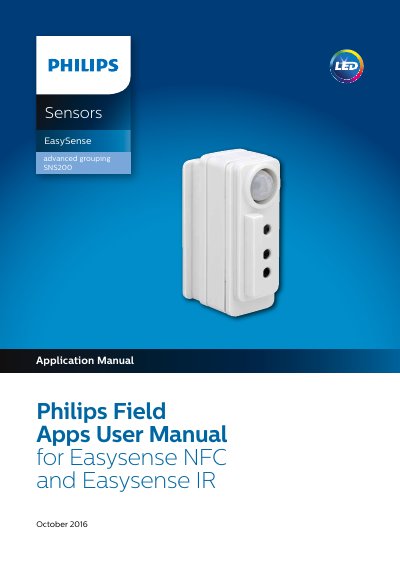
Philips Field Apps includes two apps for configuring EasySense: EasySense NFC and EasySense IR. EasySense IR can also be used to commission (group) luminaires with EasySense and add wireless switches to the group for Model SNS200 and future generations. The manual notes that SNS 102 is not available in Europe and is available only in North America, and that the name EasySense Advanced Grouping SNS200 has migrated to EasyAir office sensor advanced grouping SNS200.
The apps run only on certain Android-based smartphones with NFC and IR blaster functionality, are downloaded from Google Play, and require accepting Conditions of use and signing in once per installation. The EasySense NFC App covers scanning a device, configuring key parameters, programming with a profile and location, and energy reporting (Beta). The EasySense IR App covers configuring parameters and scenes, quick light level setting, using stored profiles, changing a fixture's Zigbee channel, and troubleshooting messages.
| Supported phone platform | Certain Android-based smartphones |
|---|---|
| Phone features required | NFC and IR blaster functionality |
| Location field length | 40 characters |
Check the EasySense website for the latest list of compatible phones with NFC and IR blaster functionality and their NFC reader locations.
They can be downloaded from the Google Play store.
The user must accept the Conditions of use and sign in with a username and password requested at www.philips.com/xitaniumsr; internet access is needed.
After the system has been powered for at least one hour.